# Saved replies and views
Reuse answers to common questions, and save ticket filters as views, for everyone or for one team.
A **saved reply** is an answer your team sends often, ready to insert with a slash. A **view** is a saved set of ticket filters that sits in the sidebar with a live count. Both can belong to the whole workspace or to one [team](/guides/teams-and-roles/), so the Billing team gets its own refund answer and its own queue without cluttering everyone else's.
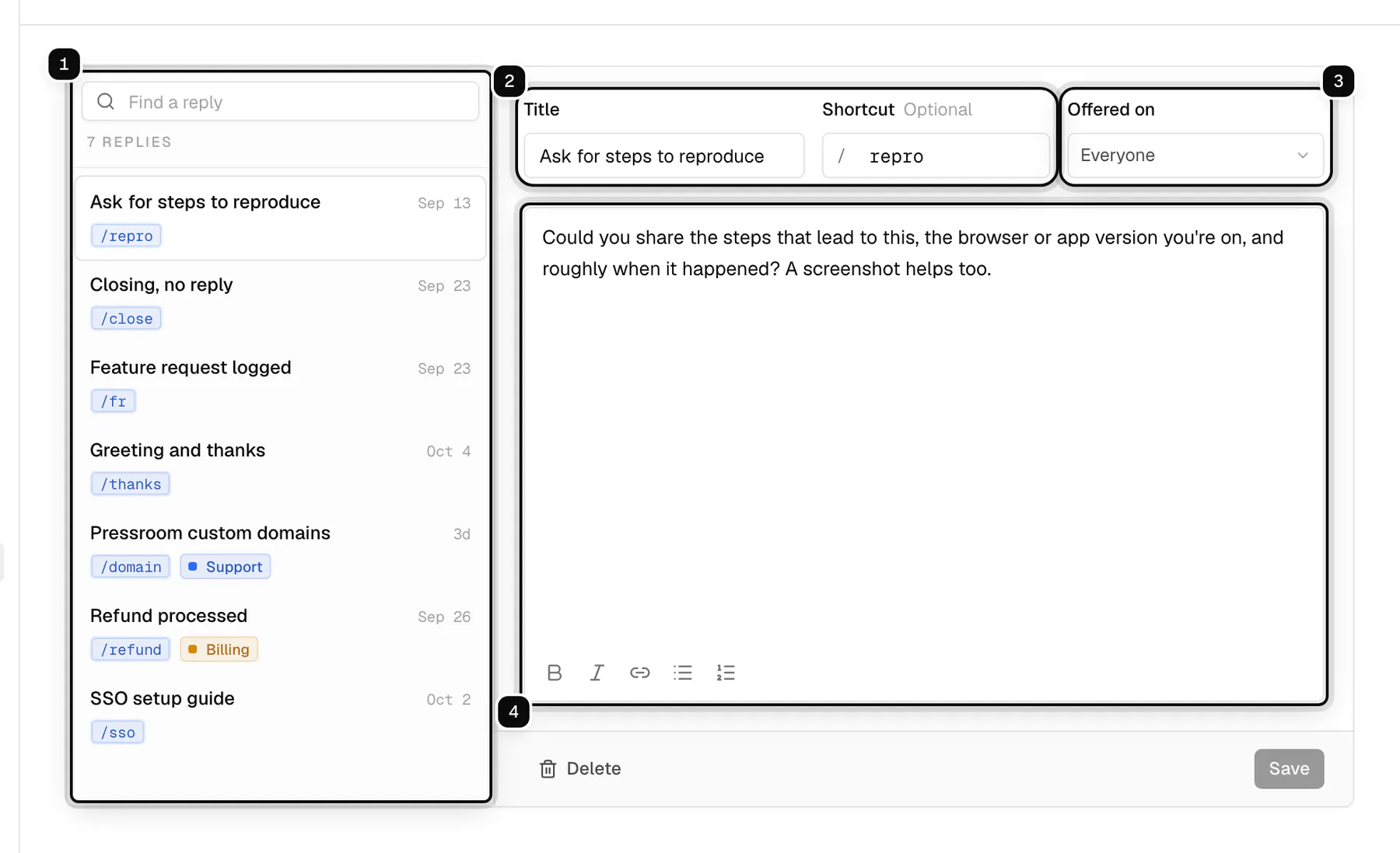
1. **Replies**: every saved reply, with its shortcut and, for a team's reply, the team. Search by title or shortcut.
2. **Title** and **Shortcut**: the shortcut is what you type after / in the composer. It is optional, and two replies cannot share one.
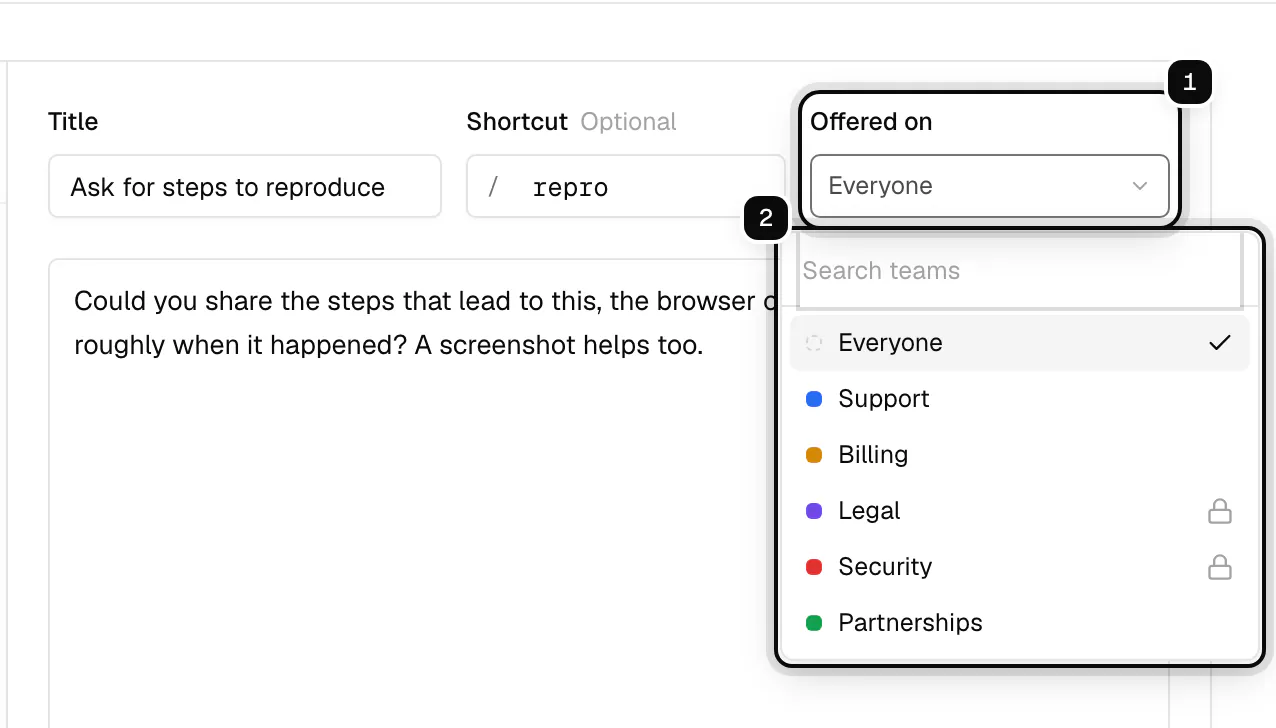
3. **Offered on**: **Everyone**, or one team. A team's reply is offered only on that team's tickets.
4. **Reply text**: the body, with bold, italic, links and lists. You can edit it in the composer before sending.
## Create a saved reply
**1. Open Settings, then Saved replies**
**Saved replies** is in the **Inbox** group of the settings menu. Click **New reply**.
**2. Give it a title, a shortcut and the text**
A short title says what the reply is for, like "Ask for steps to reproduce". Add a shortcut, like `repro`, if you want to insert it by typing. Write the reply text, then click **Save**.
**3. Choose who it is offered to**
Leave **Offered on** at **Everyone**, or pick a team. A private team (shown with a lock) keeps its replies to its own members.
> **Write replies that age well**
>
> Start with the answer, keep it short, and link to a [help article](/guides/knowledge-base/) for the detail. Then the article is the one place to update when something changes.
## Insert a saved reply
**1. Type a slash in the reply box**
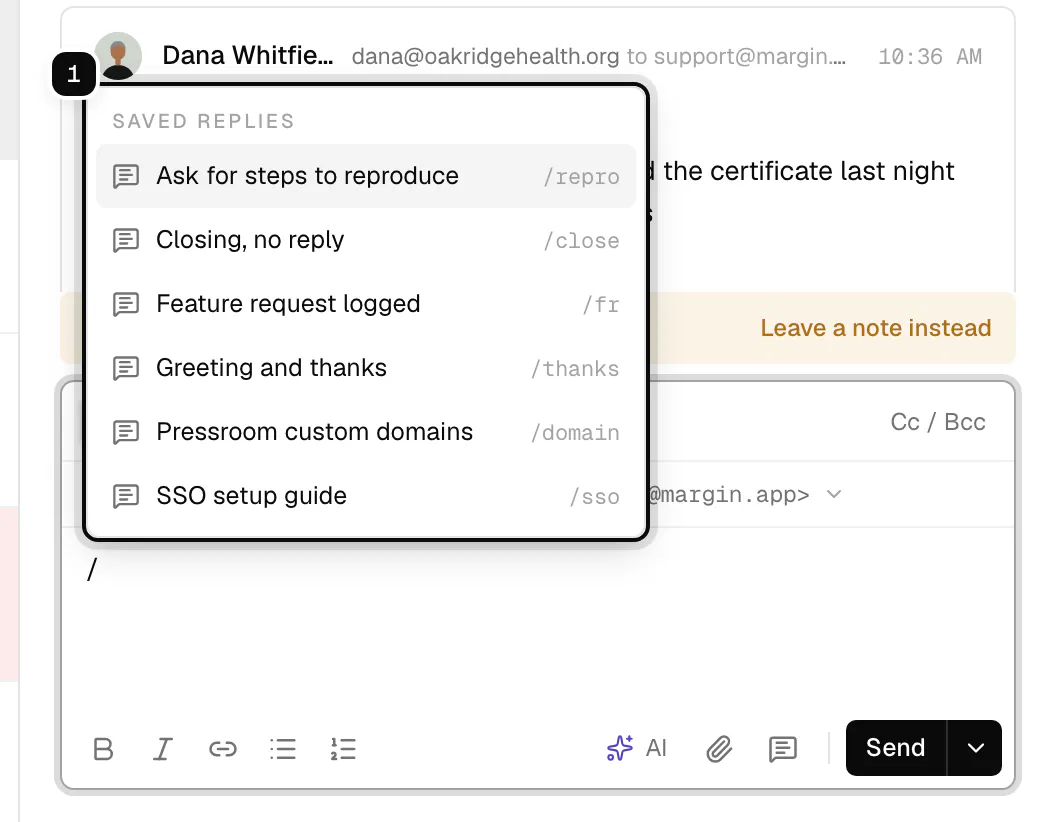
Type / in a reply or a note, at the start or after a space. The list shows the replies offered on this ticket; keep typing a title or shortcut to narrow it, then press enter.
**2. Or pick one from the toolbar**
The **Saved replies** button at the bottom of the reply box opens the same list with a search box.
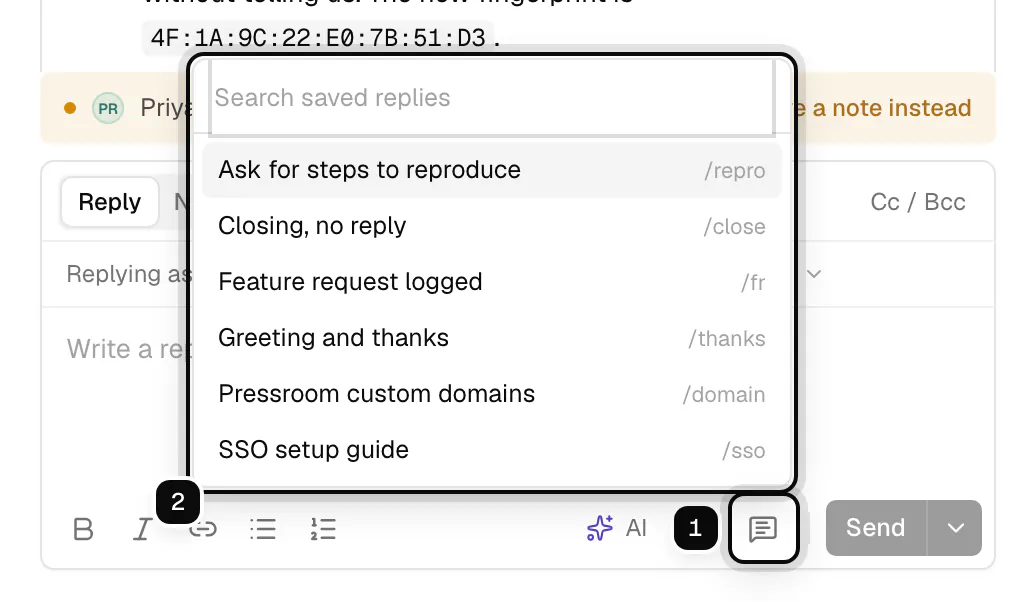
The reply lands in the editor, where you can change it before sending. On a ticket of the Billing team you see the replies for everyone and Billing's own; Support's replies are not offered there. [Ollie's drafts](/guides/ollie/) use the same rule: only the replies the composer offers on that ticket.
## Views
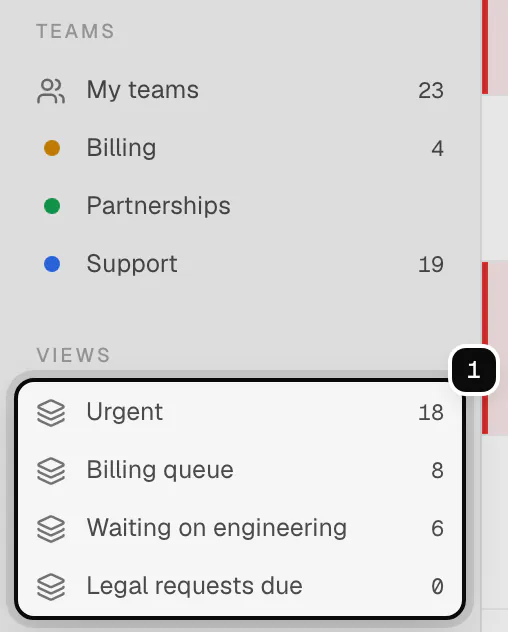
A view is a saved filter, like "urgent and open" or "waiting on billing". It appears in the sidebar under **Views** with a live count, in the order set in **Settings**, **Views**.
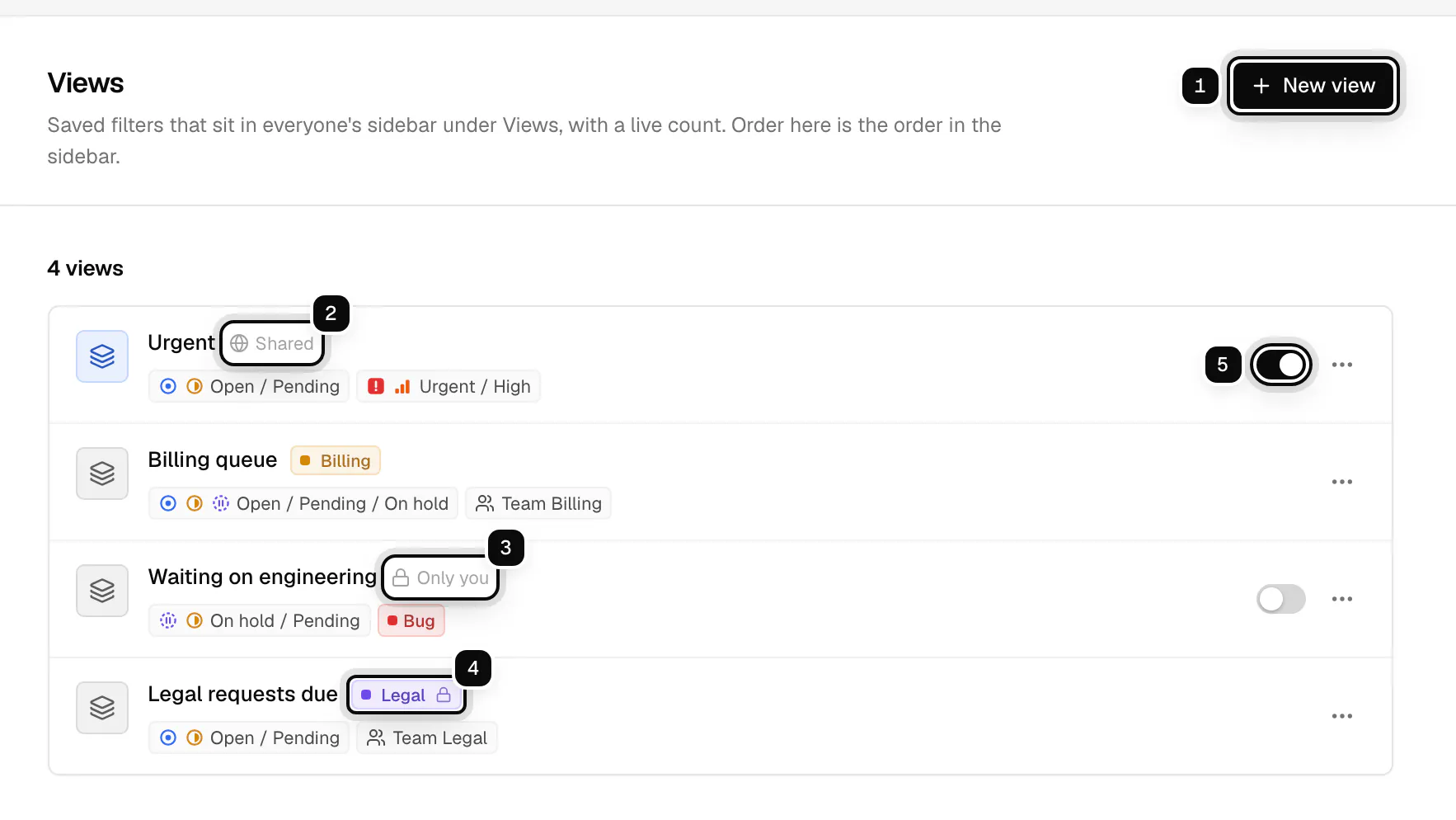
1. **New view**: create a view.
2. **Shared**: everyone in the workspace sees this view in their sidebar.
3. **Only you**: a personal view, in your sidebar only.
4. **A team**: the view is shared with the team's members. A lock means the team is private.
5. **Show to everyone**: turns one of your views into a shared one, or back. Team views have no switch: they are shared with their team.
**1. Click New view and name it**
Give the view a short name, like "Billing queue". It is the label in the sidebar.
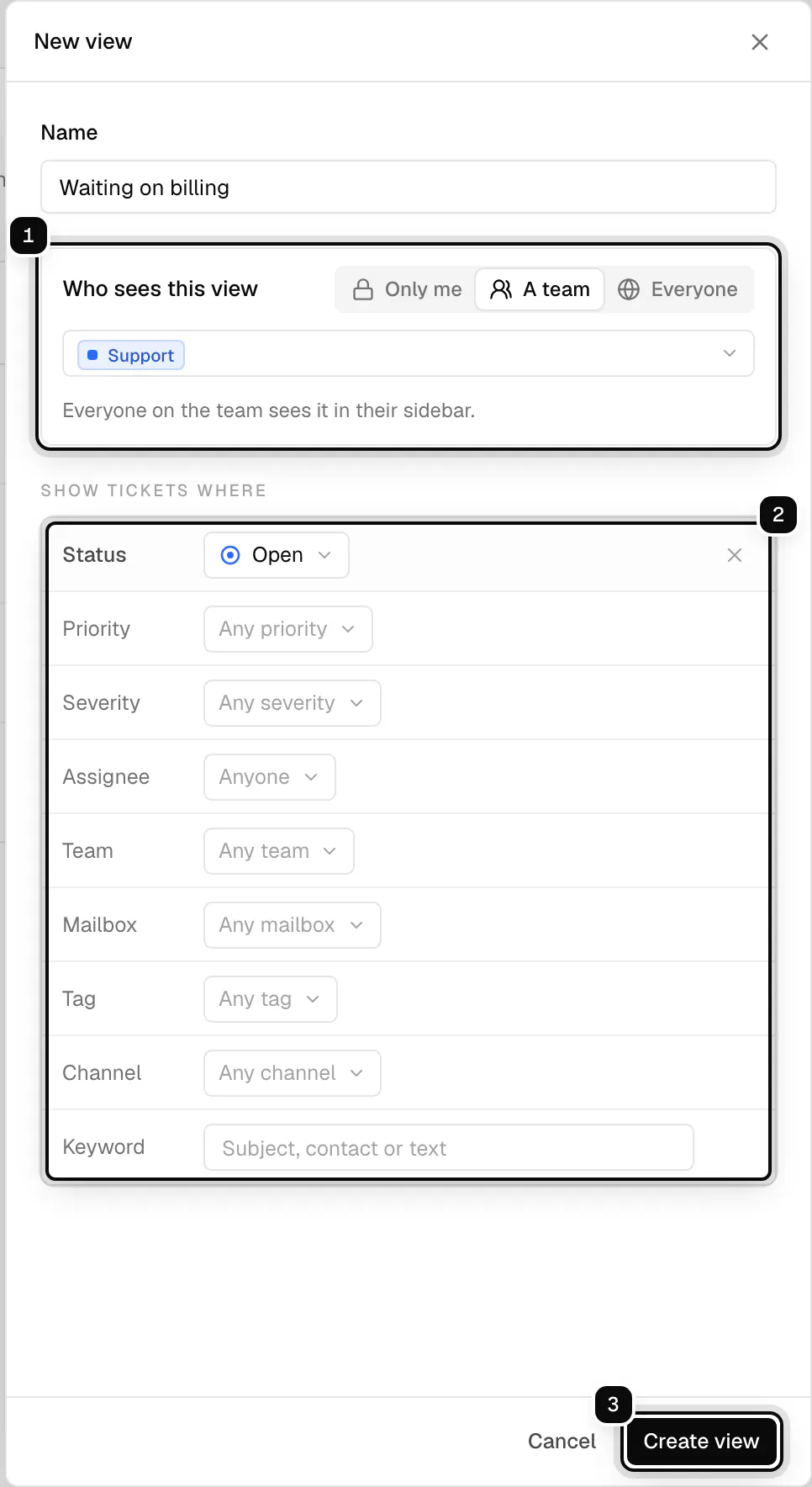
**2. Choose who sees it, and set the filters**
Under **Who sees this view**, pick **Only me**, **A team** (then the team) or **Everyone**. Under **Show tickets where**, set any of the filters. Fields you leave on "Any" do not filter.
**3. Find it in the sidebar**
Click **Create view**. The view appears under **Views** in the sidebar, with the number of tickets that match, kept live as tickets change.
> **Who can change a view**
>
> Agents make views for themselves. Admins make views for everyone. A team's views are made by admins and the team's leads; the team's other members see them but do not change them.
## Filters a view can use
- **Status**, **Priority** and **Severity**: one or more of each. Severity can include **No severity**.
- **Assignee**: **The person viewing** (so one view works as "mine" for everyone), **Unassigned**, or a member.
- **Team**, **Mailbox**, **Tag** and **Channel**.
- **Keyword**: matches the subject, the contact or the text.
Views made through the API can also filter on [custom fields](/guides/labels-and-custom-fields/#custom-fields). A view never shows tickets you cannot see: tickets of a [private team](/guides/teams-and-roles/#private-teams) you are not on are left out of its list and its count.
## Order and defaults
Drag views on the **Views** settings page to set their order, or focus the handle and hold alt with the arrow keys. The order there is the order in the sidebar. New workspaces start with a few views that you can edit or delete. Deleting a view removes it from every sidebar; the tickets are not affected.
## Related
- [Inbox and tickets](/guides/inbox-and-tickets/)
- [Teams and roles](/guides/teams-and-roles/)
- [Saved replies and views API](/api/resources/organization/)