# Keyboard shortcuts
Most things in opendesk work without a mouse.
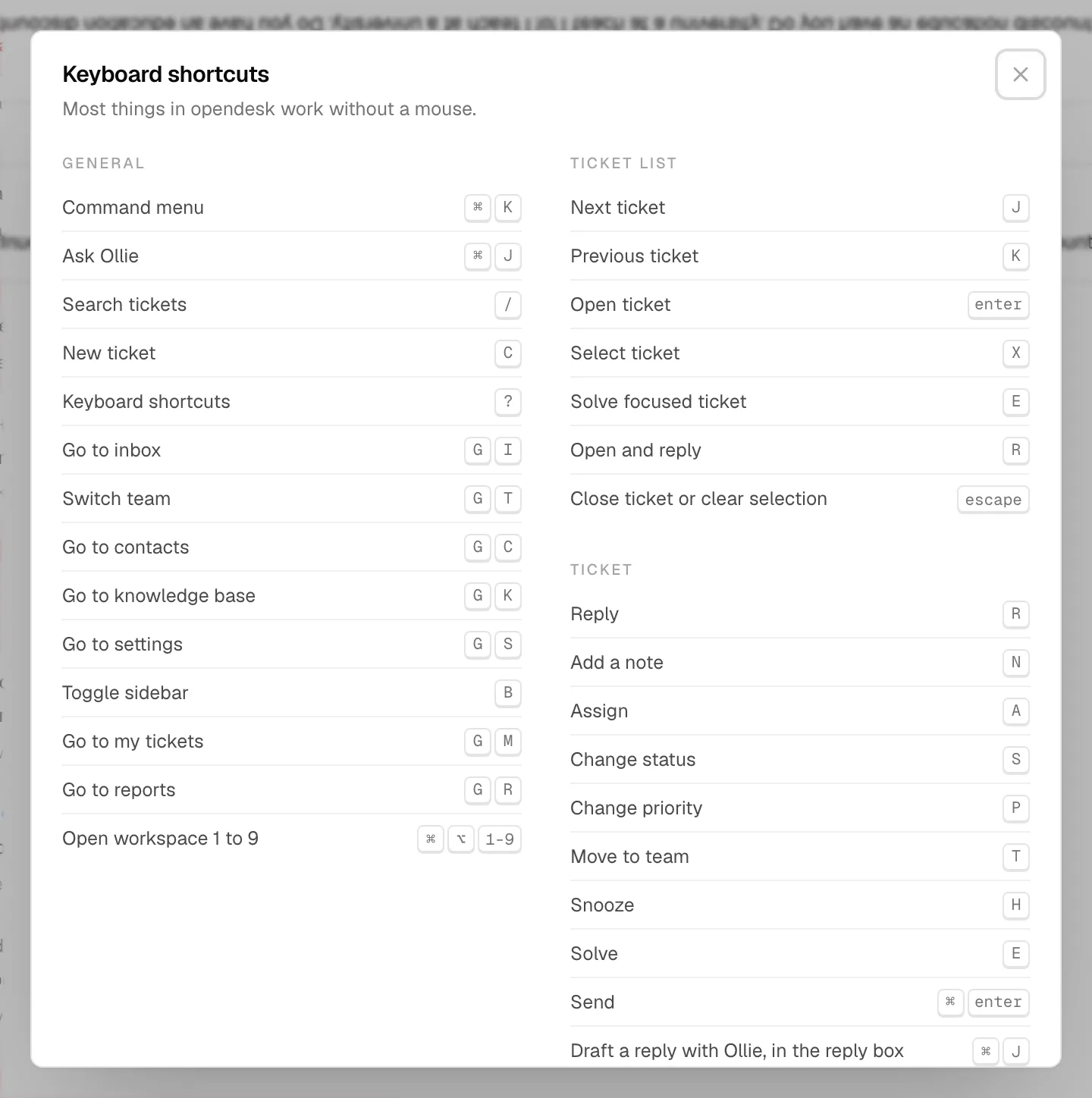
Most things in opendesk work without a mouse. Press ? anywhere in the app, outside a text box, to see every shortcut.
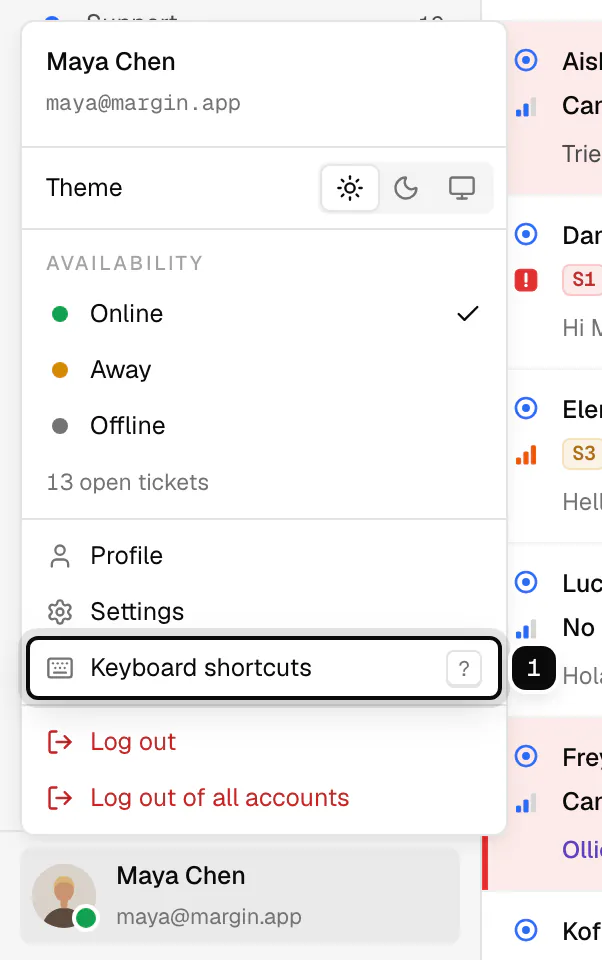
You can also open the sheet from the account menu: click your name at the bottom of the sidebar, then **Keyboard shortcuts**.
> **Reading the keys**
>
> mod is ⌘ on macOS and Ctrl elsewhere. Two keys joined by "then" are pressed one after the other: g then i means press g, let go, then press i.
## General
| Keys | Action |
| --- | --- |
| mod k | Command menu: search tickets, contacts, articles and settings |
| mod j | Ask Ollie (in a ticket's reply box, Ollie drafts a reply instead) |
| / | Search tickets |
| c | New ticket |
| ? | Keyboard shortcuts |
| g then i | Go to inbox |
| g then m | Go to my tickets |
| g then t | Switch team, when the workspace has teams |
| g then c | Go to contacts |
| g then k | Go to knowledge base |
| g then r | Go to reports |
| g then s | Go to settings |
| b | Toggle sidebar |
| mod alt 1 to 9 | Open workspace 1 to 9 |
## Ticket list
| Keys | Action |
| --- | --- |
| j | Next ticket |
| k | Previous ticket |
| enter | Open ticket |
| x | Select ticket, for [bulk changes](/guides/inbox-and-tickets/#work-on-many-tickets-at-once) |
| e | Solve the focused ticket |
| r | Open the focused ticket and reply |
| esc | Close ticket or clear selection |
## Ticket
| Keys | Action |
| --- | --- |
| r | Reply |
| n | Add a note |
| a | Assign |
| s | Change status |
| p | Change priority |
| t | Move to team |
| h | Snooze |
| e | Solve |
| mod enter | Send |
| mod shift enter | Send and mark solved |
| mod j | Draft a reply with Ollie, while you are in the reply box |
## In the reply box
- Type / to insert a [saved reply](/guides/saved-replies-and-views/), and @ in a note to mention a teammate.
- mod j asks Ollie to draft a reply. Outside the reply box the same keys open Ollie.
- enter picks the highlighted item in those lists, esc closes them.
- Single-key shortcuts are paused while you type, so r or e in a message is just a letter.
## In menus and pickers
Use the arrow keys to move through a menu or picker, enter to choose, and esc to close without changing anything. In a picker with a search box, type to narrow the list.
## Related
- [Inbox and tickets](/guides/inbox-and-tickets/)
- [Desktop app](/guides/desktop-app/)