# Inbox and tickets
Find your way around the opendesk inbox, answer tickets, set their status and assignment, and work through the queue with your team.
Every conversation in opendesk is a **ticket**. Email, live chat, the API and the help center portal all create tickets in the same inbox, so your team works one queue. The inbox updates live: when a teammate replies, changes a status or assigns a ticket, everyone sees it without refreshing.
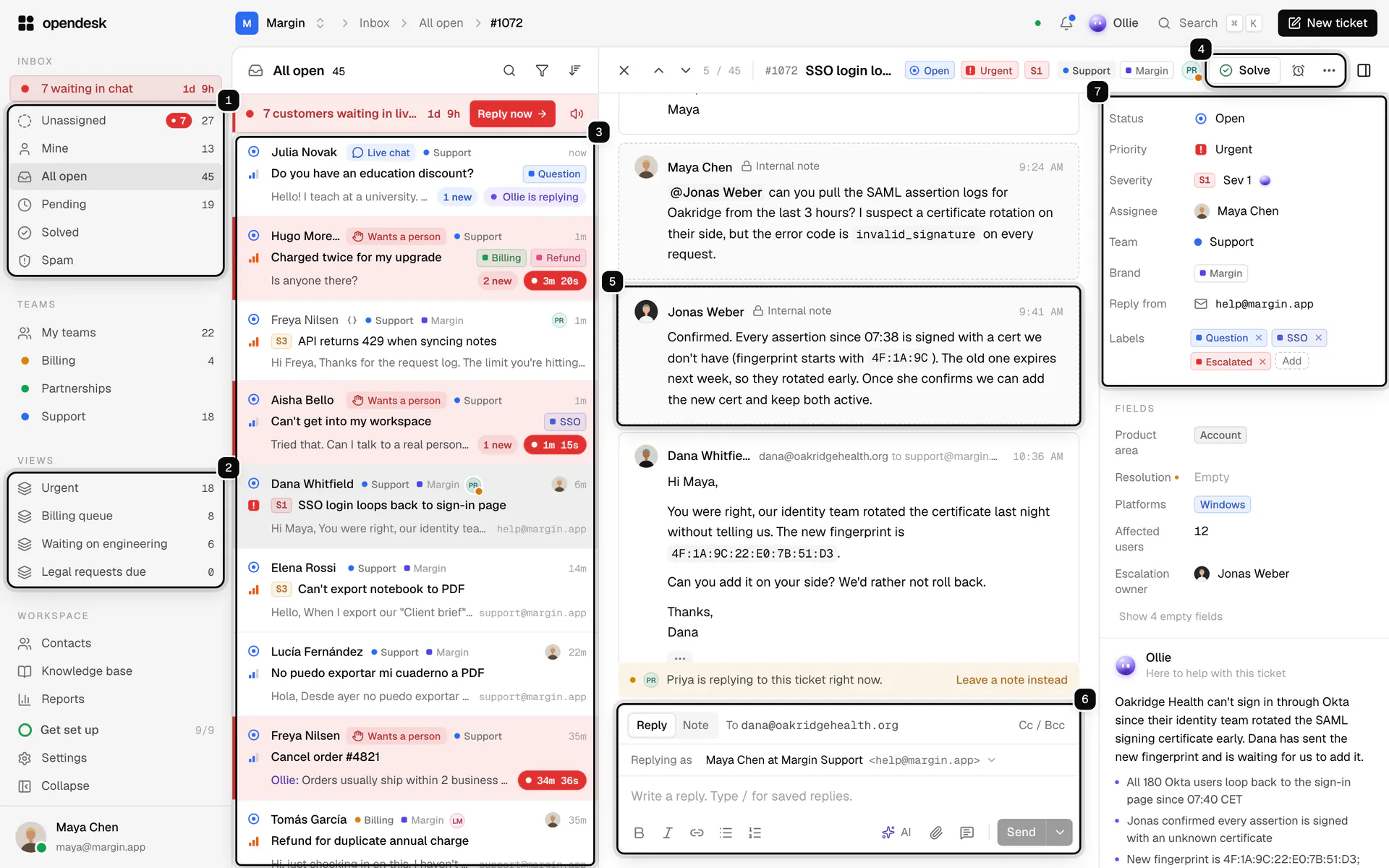
1. **Folders**: Unassigned, Mine, All open, Pending, Solved and Spam, each with a live count.
2. **Views**: saved filters your team shares, like Urgent or Billing queue. See [Saved replies and views](/guides/saved-replies-and-views/).
3. **Ticket list**: the tickets in the folder or view, with search, filter and sort at the top.
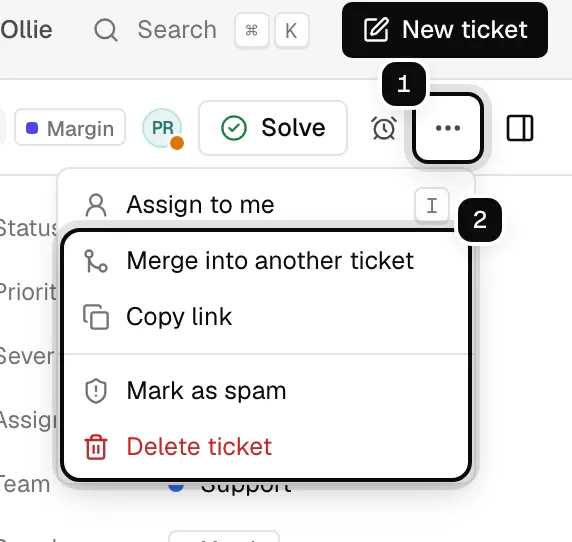
4. **Ticket actions**: **Solve**, **Snooze**, and the **⋯** menu to assign to yourself, merge, copy a link, mark as spam or delete.
5. **Timeline**: the customer's messages, your replies, internal notes and every change, in order.
6. **Reply box**: write to the customer, or switch to **Note** to write only for your team.
7. **Details**: status, priority, severity, assignee, team, brand, the address replies go out from, and labels.
## Answer a ticket
**1. Open a folder, then a ticket**
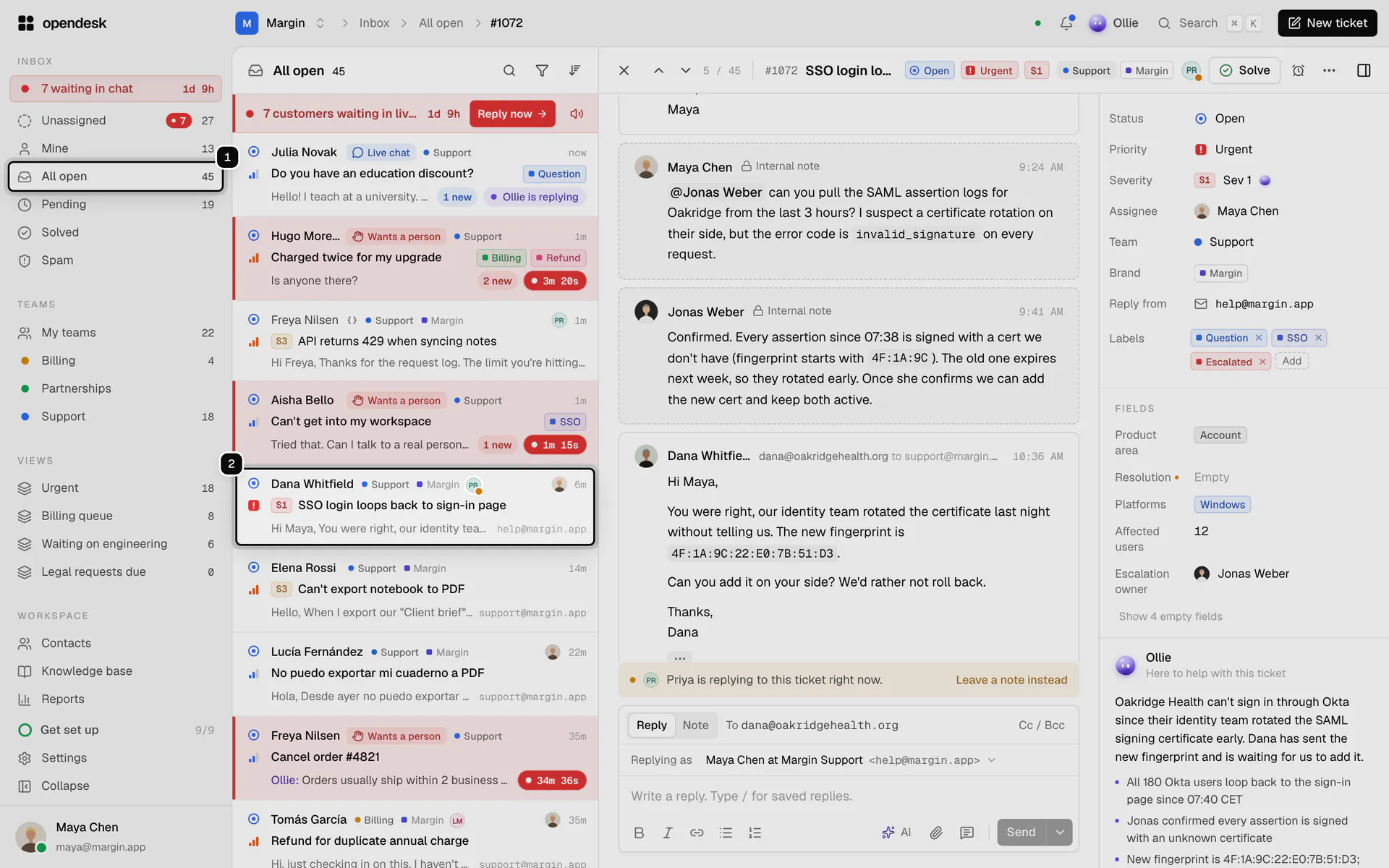
Pick a folder or a view in the sidebar, then click a ticket in the list. Use the arrows at the top of the ticket, or j and k, to move to the next one.
**2. Write a reply or a note**
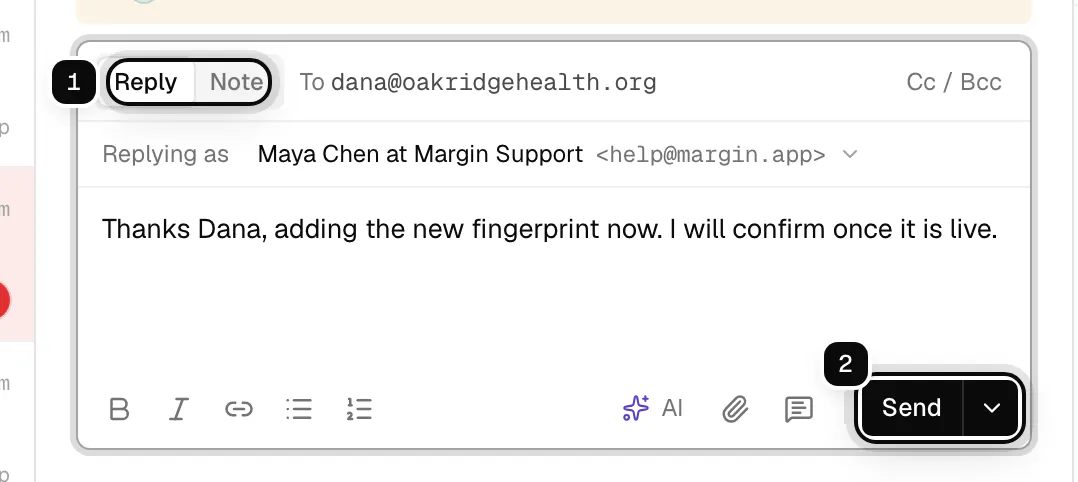
**Reply** writes to the customer. On email tickets it is sent from the ticket's mailbox with its signature, so the customer sees your support address. **Note** writes an internal note that customers never see, over email or in the chat widget. Type / to insert a saved reply.
**3. Send, and set the status in one go**
Click **Send**, or press mod enter. The arrow next to it sends and sets the status in the same step: **Send and mark pending**, **Send and mark on hold**, or **Send and mark solved** (mod shift enter). Each reply then shows its delivery status: pending, sent, failed or bounced.
**4. Check who else is on the ticket**
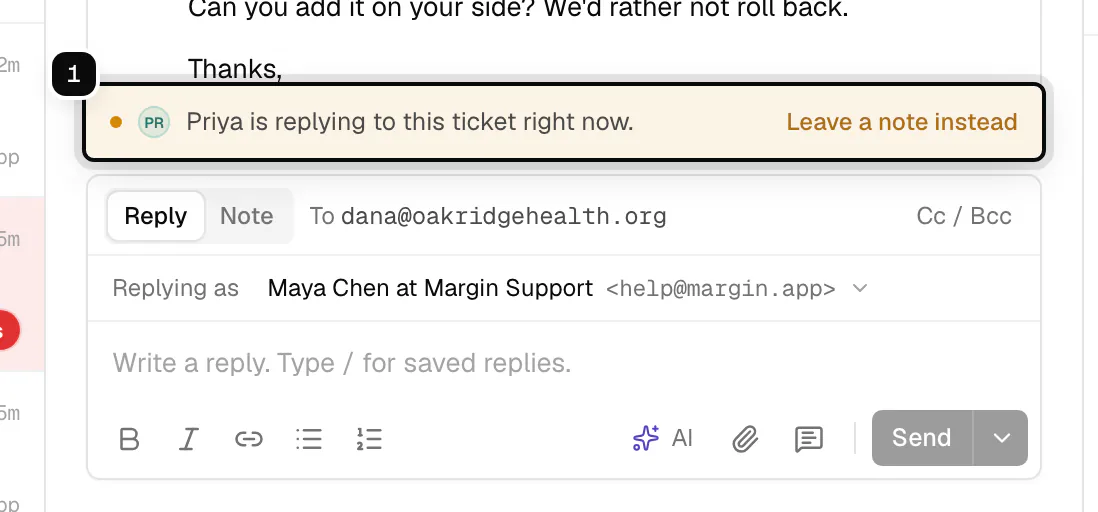
On an open ticket you see who else is viewing or replying, and on chat tickets the customer's typing. If a teammate is already replying, the bar above the reply box says so, and **Leave a note instead** switches you to a note.
> **Good to know**
>
> - mod is ⌘ on macOS and Ctrl elsewhere. Press ? anywhere for every shortcut, or see [Keyboard shortcuts](/guides/keyboard-shortcuts/).
> - Attachments upload once and are linked to the message when it is sent.
> - A new reply from the customer reopens a solved ticket.
## Set status, priority and assignment
Everything about a ticket is in the details panel on the right. Click a value to change it; the change shows up for the whole team at once and is recorded in the timeline.
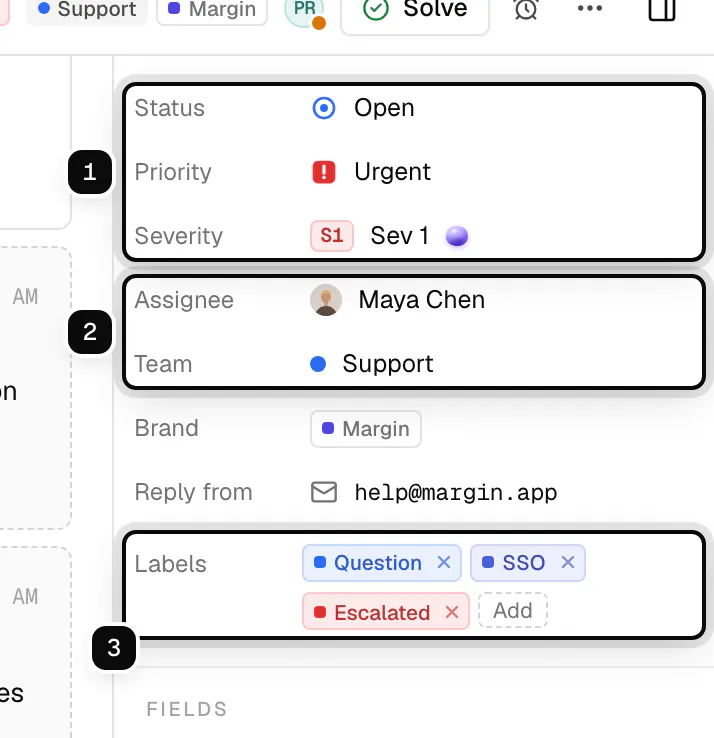
1. **Status**, **priority** (low, normal, high or urgent) and an optional **severity**, from Sev 1 (critical) to Sev 4 (low impact), shown as a compact chip such as `S2`.
2. **Assignee** and **team**. Assign a person, a team, or both. Assigning someone notifies them (see [Notifications](/guides/notifications/)).
3. **Labels**, to group and find tickets. See [Labels and custom fields](/guides/labels-and-custom-fields/).
| Status | Meaning |
| --- | --- |
| `open` | Waiting on your team. |
| `pending` | Waiting on the customer. |
| `on_hold` | Waiting on something else, such as another team or a third party. |
| `solved` | Resolved. A new reply from the customer reopens the conversation. |
| `closed` | Finished and kept for the record. |
A workspace can also assign new tickets automatically, by round robin or by load, in **Settings**, under **Assignment**, and [automations](/guides/automations/) can assign by rule. See [Triage and assignment](/guides/triage-and-assignment/).
## Snooze, merge, spam and delete
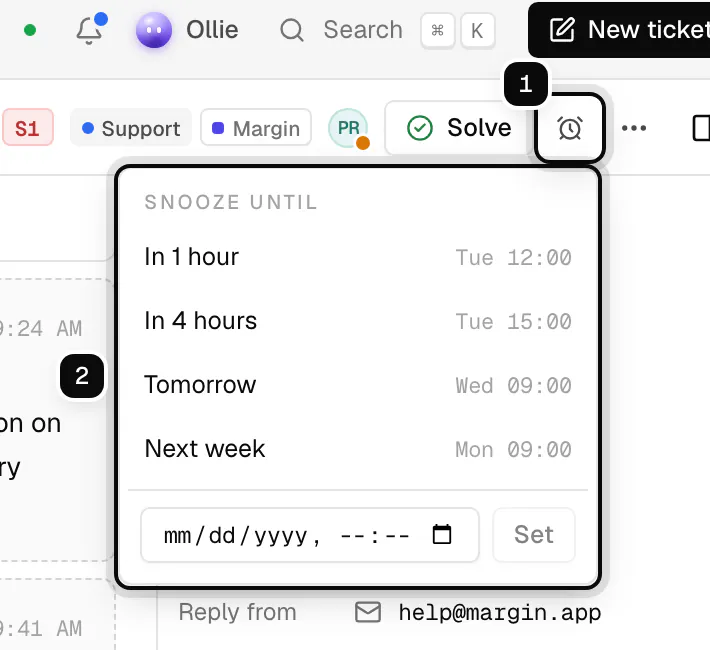
**Snooze** hides a ticket until a time you pick: in an hour, in four hours, tomorrow, next week, or a date and time of your own. A snoozed ticket is on hold until then.
The **⋯** menu holds the rest: **Merge into another ticket**, **Copy link**, **Mark as spam** and **Delete ticket**.
## Work on many tickets at once
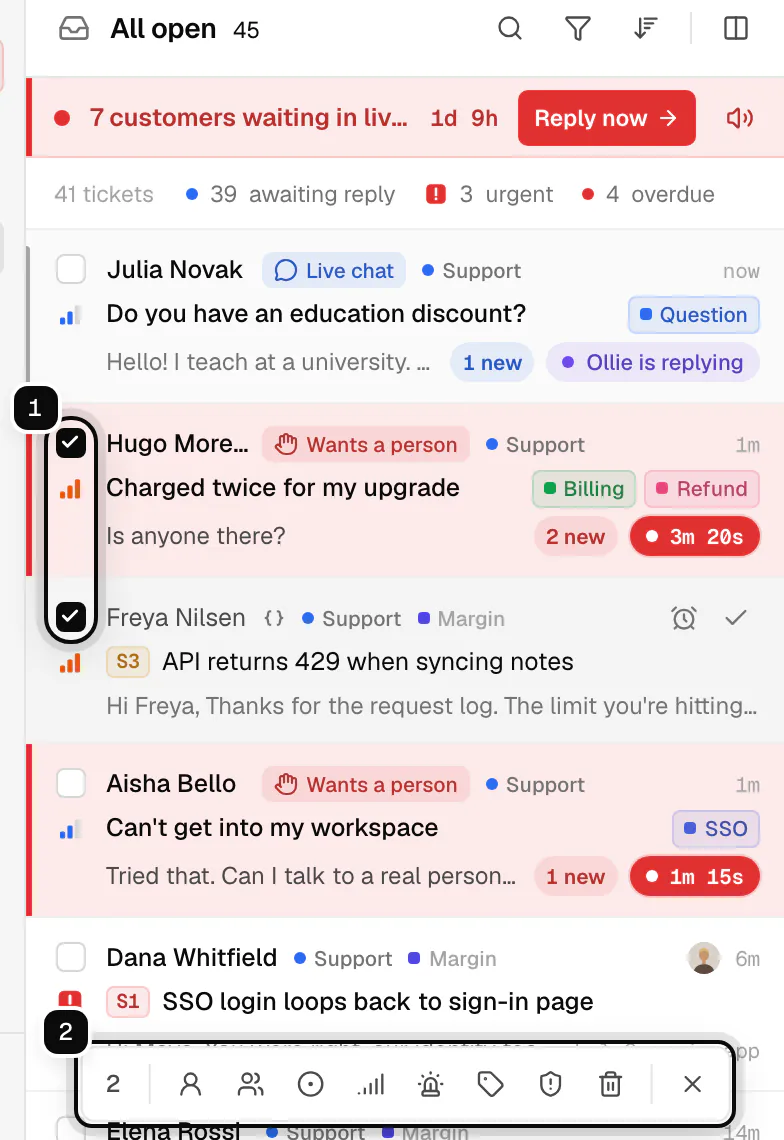
Hover a ticket and tick its box (or press x), then tick any others. The bar at the bottom of the list changes them all in one step: assignee, team, status, priority, severity, labels, spam, or delete.
## Find tickets
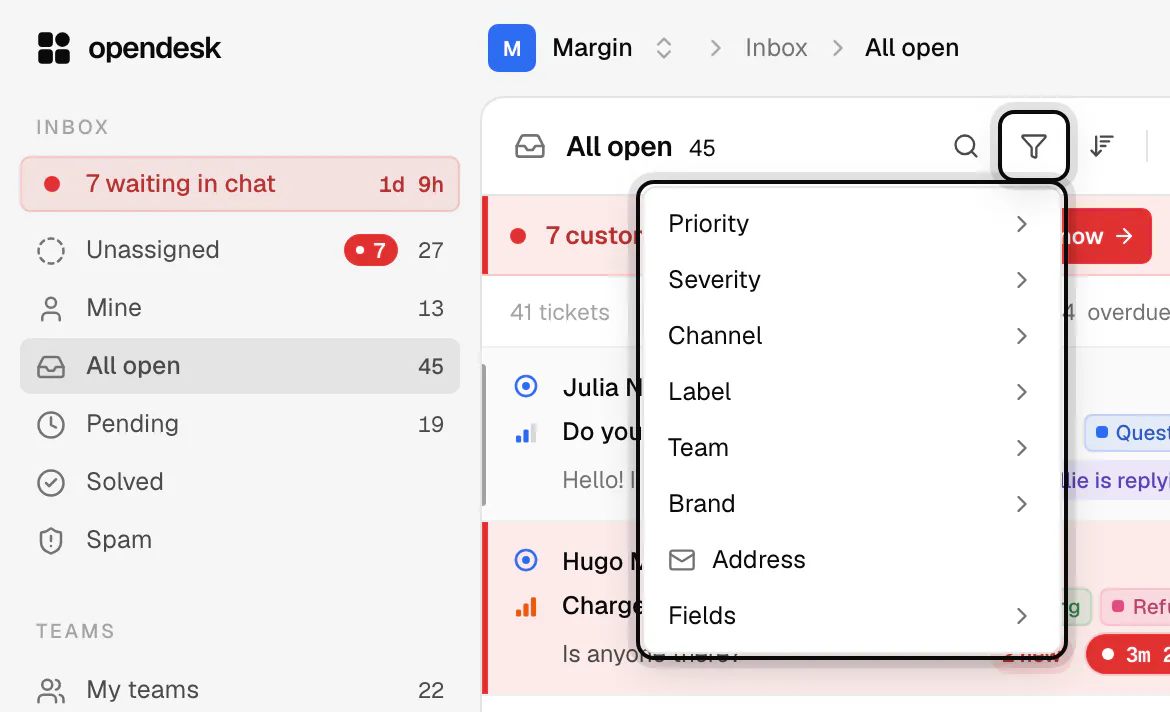
The **filter** button at the top of the list narrows it by priority, severity, channel, label, team, brand, address or custom field. Save a filter you use often as a [view](/guides/saved-replies-and-views/), and it appears in the sidebar with its own count.
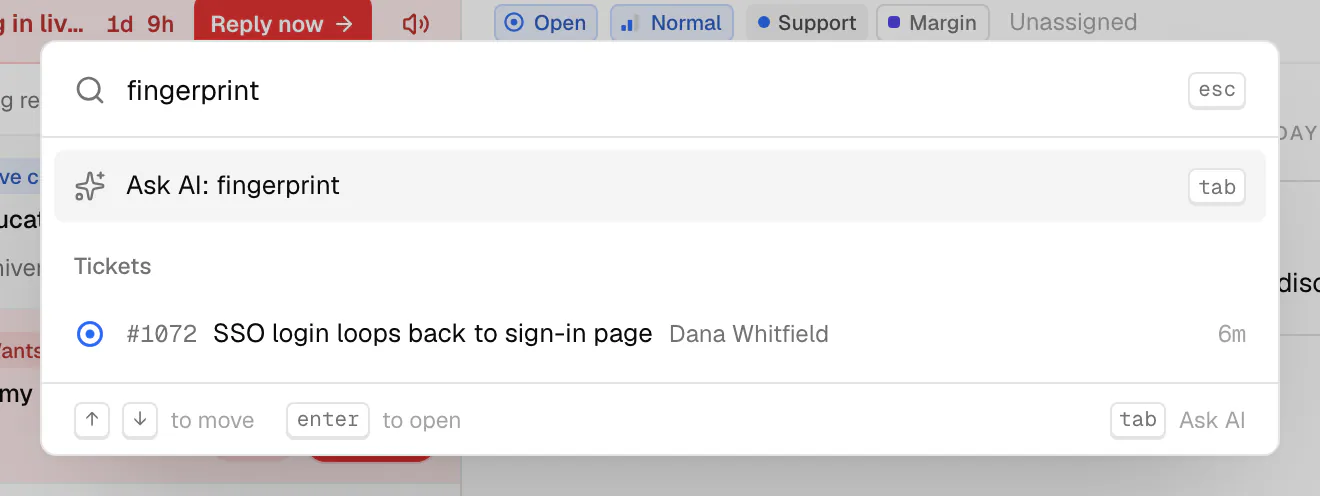
Press mod k, or click **Search** at the top, to search everything at once: tickets, contacts, articles and settings.
## What a ticket holds
- a **number** (`#1042`), unique and increasing within the workspace
- a **subject** and a **channel**: `email`, `chat`, `api` or `portal`
- a **status**, a **priority** and an optional **severity**
- an optional **assignee**, **team**, **mailbox** and **labels**
- the **contact** who wrote in, and their company when known
- an **SLA** with first response and resolution due times, when a policy applies (see [SLA policies](/guides/sla-policies/))
- a **CSAT** score once the customer rates the conversation (see [CSAT](/guides/csat/))
## Replies, notes and activity
A ticket's timeline holds its messages and its activity:
- **Replies** go to the customer. Each one shows its delivery status: pending, sent, failed or bounced.
- **Notes** are internal. Customers never see them, over email or in the chat widget.
- **Activity** records status, priority, severity, assignment, team, label, SLA, merge and CSAT changes, with who made them.
## Contacts and companies
Every customer is a **contact**, matched by email address, or by your own user id when the chat widget is [verified](/guides/live-chat/identity-verification/). Contacts can belong to a **company**, carry notes and custom fields, and be blocked. A contact's page lists all of their tickets. Open **Contacts** in the sidebar to browse them.
## Related
- [Connect a mailbox](/guides/mailboxes/)
- [Keyboard shortcuts](/guides/keyboard-shortcuts/)
- [Tickets API](/api/resources/tickets/)