# Desktop app
Install opendesk on macOS, Windows or Linux, connect it to Cloud or your own server, get notifications and a badge, and keep it up to date.
The desktop app is opendesk in its own window, with what a browser tab cannot give you: system notifications, an unread badge on the dock or taskbar, and links that open straight in the app. It shows your server's own web app, so everything you can do in the browser works the same way, and it stays in step with your server's version.
It works with opendesk Cloud and with any self-hosted instance.
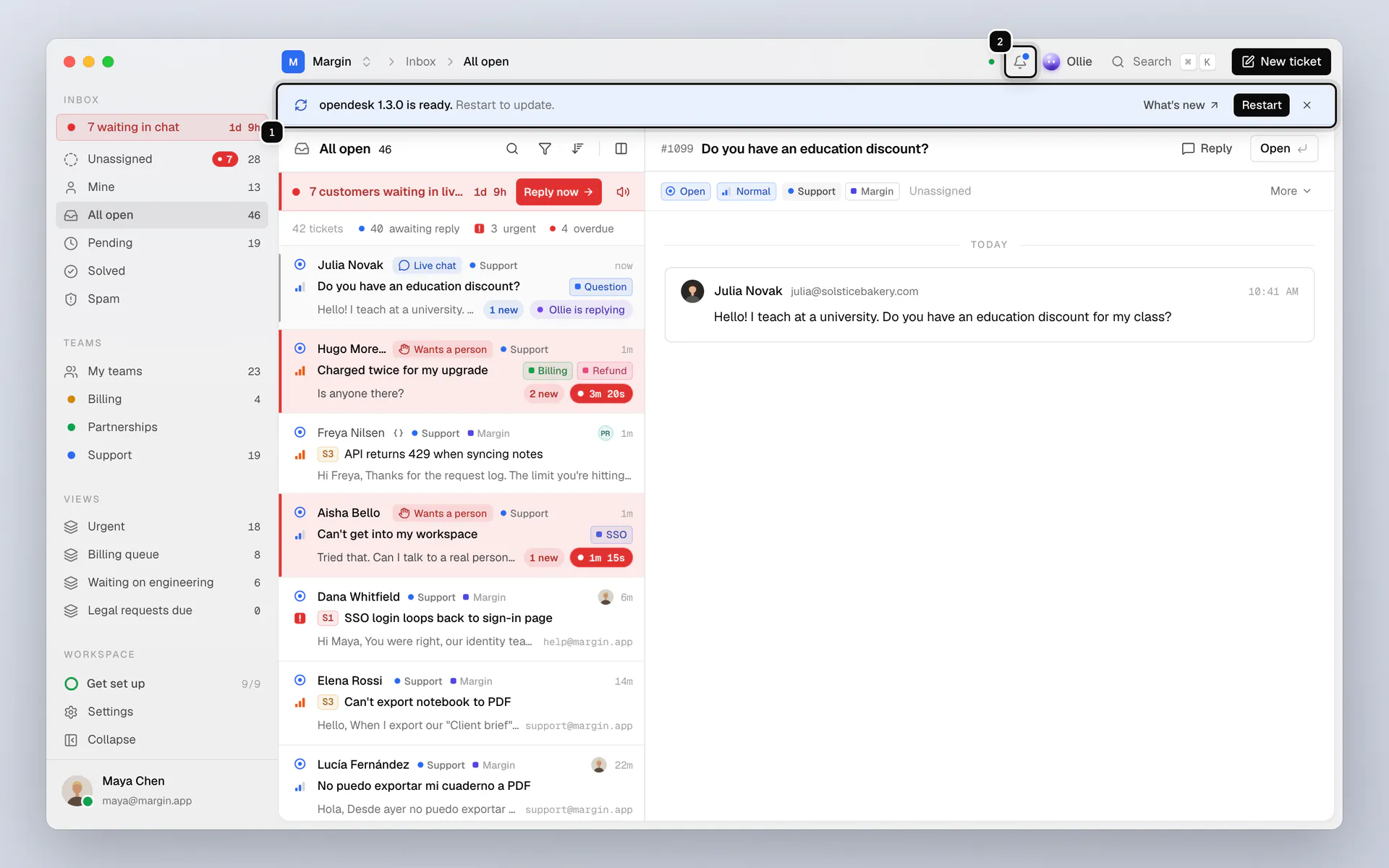
1. **Update strip**: shows while a new version of the app downloads, and when it is ready to install.
2. **Notifications**: the same list as on the web. While the window is in the background they also arrive as system notifications, and the unread count shows on the app icon.
## Get started
**1. Download and install**
Download the newest version from [opendesk.sh/download](https://opendesk.sh/download). The page picks the file for your system, and lists the others.
| System | File |
| --- | --- |
| macOS 13 or later (Apple silicon and Intel) | `.dmg`: open it and drag opendesk to Applications |
| Windows 10 or later (x64 and Arm) | `.exe`: run the installer. It installs for you alone, with no administrator prompt |
| Linux (x64 and arm64) | `.AppImage` (make it executable and run it) or `.deb` for Debian and Ubuntu |
**2. Connect to a server**
The first time it opens, the app asks which server to use.
- **opendesk Cloud:** type `opendesk.sh`.
- **Your own server:** type its address, such as `desk.example.com`. The app adds `https://` for you.
The app reads the server's `/config.json` to find its API and realtime addresses, then shows the usual sign-in page. A self-hosted server needs a release that serves `/config.json`; upgrade an older one first.
**3. Sign in**
Sign in the way you do on the web: email and password (with your two-factor code if you use one), or single sign-on.
**Google, Microsoft and GitHub open your browser.** These providers refuse sign-in inside an app's own window, so the app opens the provider in your default browser. When you have signed in, the browser asks to open opendesk and hands you back to the app, signed in.
**4. Allow notifications**
macOS and Windows ask for permission to show notifications the first time. If you said no, turn them on in **System Settings, Notifications** (macOS) or **Settings, System, Notifications** (Windows).
> **Good to know**
>
> Every version, with its release notes and a `SHA256SUMS` file to check your download against, is on [GitHub Releases](https://github.com/useopendesk/opendesk/releases) under the `desktop-v` tags.
## Switch to another server
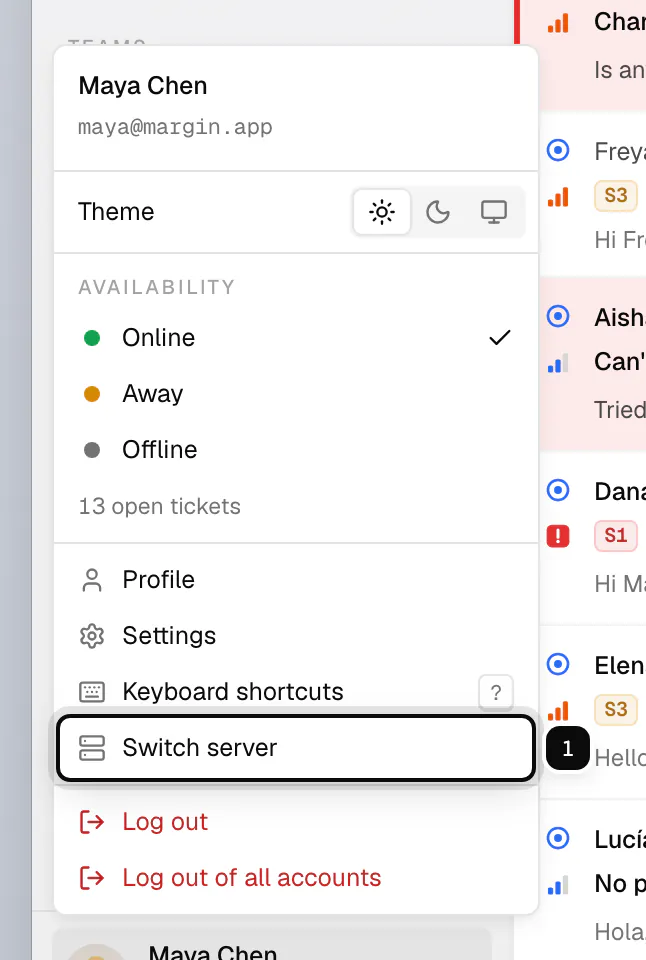
Click your name at the bottom of the sidebar and choose **Switch server**. You can also find it in the command menu (mod K).
## Updates
The app keeps itself up to date. It checks for a new version when it starts and every six hours, and downloads it in the background while you work.
**1. It downloads on its own**
While a version downloads, a quiet strip at the top of the app shows its progress. You can close it; the download carries on.

**2. Restart when it suits you**
When it is ready, the strip says **opendesk 1.3.0 is ready. Restart to update.** You also get a system notification.

- **Restart** installs it now.
- **What's new** opens the release notes.
- Or keep working: the update installs the next time you quit the app.
To check by hand, choose **Check for updates** in the **opendesk** menu (macOS) or the **Help** menu (Windows and Linux). When an update is ready, the same item reads **Restart to update**. Updates come from GitHub Releases over HTTPS, and the app checks each download against the checksum published with it before installing. An update only ever moves to a newer version.
### Beta updates
Turn on **Get beta updates** in the same menu to get new versions before everyone else. You then get each beta as it comes out, and every stable version newer than the beta you have.
If you turn beta updates off, the app stays on the beta it has until a stable version passes it, then follows stable versions again. It never moves you back to an older version.
### The app and your server
The pages you see come from your server, so web features arrive when your server is upgraded, not when the app is. App updates bring what the window itself does: notifications, the badge, links and sign-in.
## Notifications and badge
- When the opendesk window is not in front, notifications (assigned to you, mentioned, customer replied, SLA breached) appear as system notifications. Click one to open its ticket.
- When the window is in front, they appear in the app as usual, without a system notification.
- The dock icon (macOS), taskbar icon (Windows) or launcher icon (Linux desktops that support it) shows your unread notification count, and clears as you read them.
See [Notifications](/guides/notifications/) for what you are notified about.
## Mailboxes, integrations and links
Connecting a Gmail or Microsoft 365 mailbox, or a product under **Settings, Integrations**, signs you in to that provider. Like sign-in, the provider will not do that inside the app, so the app opens the same page of your opendesk in your default browser. Finish there (sign in to opendesk in the browser first if it asks). The desktop app updates as soon as the connection is made, with no reload.
Links to your opendesk server open in the app. Links to anywhere else (a customer's website, a help center article on another domain, an email link) open in your default browser. `opendesk://open?path=/inbox/...` links open a page of the app directly.
## Sessions and security
Your session is the same kind as in a browser: a short-lived access token and a refresh token in an HttpOnly cookie that page scripts cannot read. The session list in your account settings shows it as **Desktop**, and you can sign it out from there like any other session. Browser sign-in hand-offs are protected with PKCE: only the copy of the app that started the sign-in can finish it.
- The window shows only your opendesk server. Pages run in a sandbox with no access to your files or the rest of your computer, the same as in a browser tab.
- Navigation is limited to your server's web app and API addresses. Anything else opens in your default browser, never inside the app.
- The app allows only two permissions: notifications and the clipboard. Camera, microphone, location and the rest are refused.
- External links open only over `https`.
## Related
- [iPhone app](/guides/iphone-app/)
- [Notifications](/guides/notifications/)